FREE STANDARD SHIPPING, ALWAYS
How To: Add Text Pages to Your Subscription Photo Books
Published 7/30/24
Chatbooks Ideas
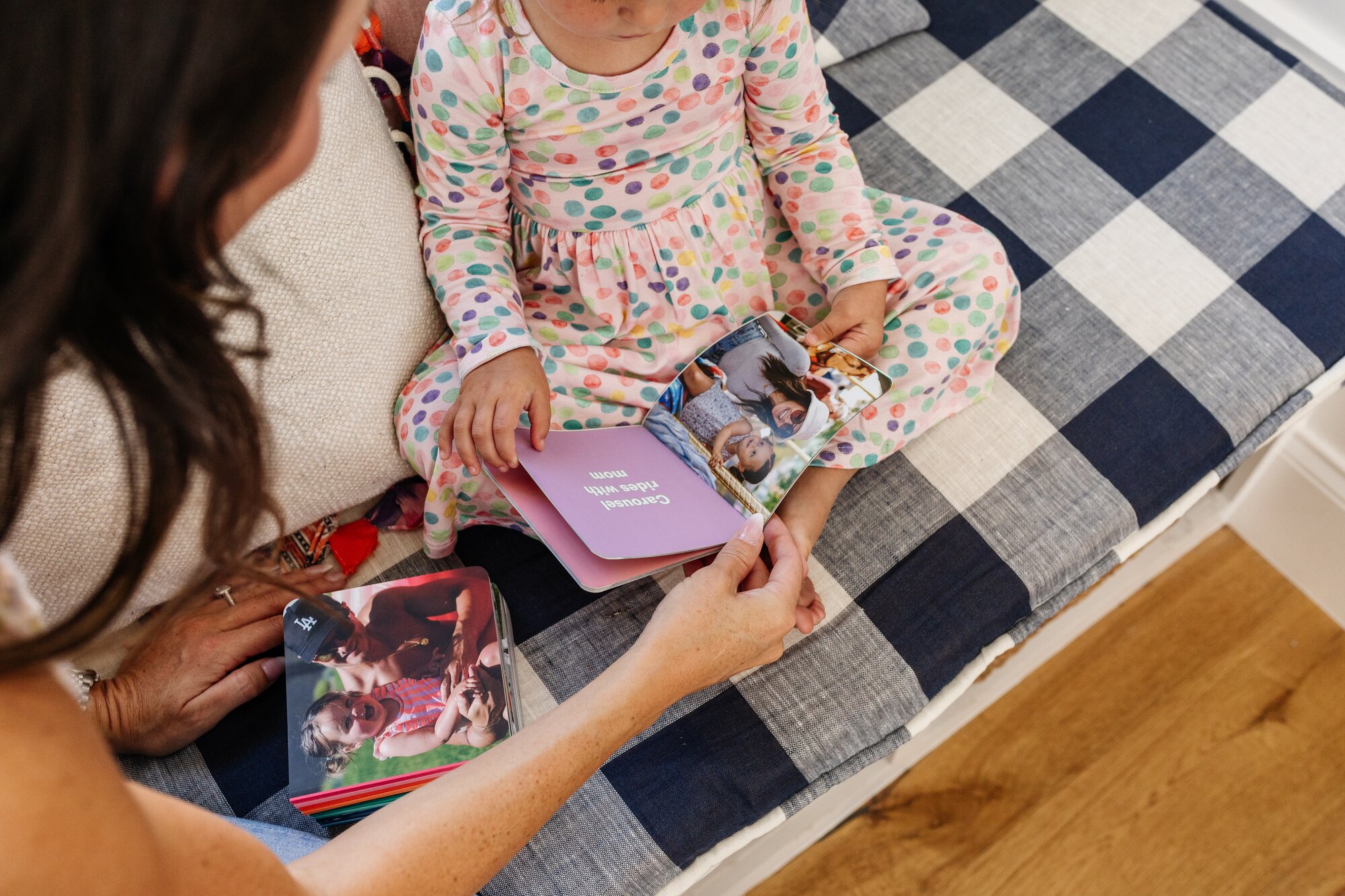
Whether you're packing your book chock full of photos (including that time your Uncle Chuck claimed he could balance a bowl of fruit on his head), sometimes you need a text page to add a quote, lyric, or other words to remember the moment. (Or, if you're struggling to find 30 photos that fit into your book, text pages are a great way to help fill your book if you don't have enough photos.) You can add text pages to your Monthbook from Chatbooks.com (linked here) or the Chatbooks app. To learn how to add a text page to your Monthbook or Monthly Mini from the app, read on here:

How To Add Text Pages to Your Subscription Photo Books
Want to describe a photo in your Monthbook or Monthly Mini with more than just a caption? If so, you have text pages to do so! To add a text page to your subscription photo book, be sure you are logged into your Chatbooks app and click into your Active Subscription.
From there, click into the Monthbook or Monthly Mini you want to add the text page to. Once you have at least one photo added to your photo book, click the + sign in the bottom corner as shown here:
Once you click the + sign, you will see an option for “Text page. Tap there and you'll see this option:

Once you click into “text page,” this screen will appear:

You can start typing your text page. You have 357 characters, including spaces and returns, to add text to this page. Once you’ve written your text, click the “Done” button in the upper right-hand corner.

Once you click “Done” your text page will now be in your Monthbook or Monthly Mini. You can always drag and drop the text page to appear anywhere in your subscription photo book.
If you’d like to add a text page from Chatbooks.com, learn how to here.
Check out this YouTube video to see these steps in action.
